Set up Microsoft Copilot for Security
Microsoft Copilot for Security is a cloud-based, AI-powered security analysis tool. Specifically, developers designed it to address modern cybersecurity challenges effectively. Furthermore, it enables analysts to process security signals and respond to threats rapidly. Consequently, it operates at a machine speed that far surpasses human capabilities. Ultimately, this revolutionises the way organisations approach cybersecurity entirely.
Key Use Cases
Microsoft Copilot for Security focuses on making the following highlighted use cases easy to use. Consequently, these features help make analysts more productive and up-level their skills.
- Incident summarization – Gain context for incidents and improve communication across your organization by leveraging generative AI to swiftly distill complex security alerts into concise, actionable summaries, which then enable quicker response times and streamlined decision-making.
- Impact analysis – Utilize AI-driven analytics to assess the potential impact of security incidents, offering insights into affected systems and data to prioritize response efforts effectively.
- Reverse engineering of scripts – Eliminate the need to manually reverse engineer malware and enable every analyst to understand the actions executed by attackers. Analyze complex command line scripts and translate them into natural language with clear explanations of actions. Efficiently extract and link indicators found in the script to their respective entities in your environment.
- Guided response – Receive actionable step-by-step guidance for incident response, including directions for triage, investigation, containment, and remediation. Relevant deep links to recommended actions allow for quicker response.
Minimum requirements
Before onboarding, you must meet a few basic prerequisites.
Azure Subscription and Security Compute Units (SCUs)
To begin, you need an active Azure subscription to purchase security compute units. Essentially, Security Compute Units (SCUs) provide the necessary resources for dependable, consistent performance.
Importantly, Microsoft sells Microsoft Copilot for Security in a provisioned capacity model. Therefore, the service charges you by the hour. Furthermore, you can provision SCUs and increase or decrease them at any time. Ultimately, Azure calculates your billing on an hourly basis with a minimum of one hour.
For more information, see Microsoft Copilot for Security pricing.
Understanding Microsoft Copilot for Security capacity
In this context, capacity represents an Azure resource that contains your SCUs. Fortunately, you can easily manage capacity within the Azure portal or the Copilot portal. Additionally, the platform provides a usage monitoring dashboard for owners. Consequently, this allows administrators to track usage over time and make informed provisioning decisions. For more information, see Managing usage.
Onboarding to Microsoft Copilot for Security
Overall, the onboarding process requires two main steps: provisioning capacity and setting up the default environment.
Provision capacity
You can choose from the following options to provision capacity:
Option 1 (Recommended): Provision capacity within Copilot for Security
When you first open Copilot for Security (https://securitycopilot.microsoft.com/tour/admin), you are guided through the steps in setting up capacity for your organization.
Note: You need to be an Azure owner or contributor at a minimum at a resource group level to be able to create capacity.
- Sign in to Copilot for Security (https://securitycopilot.microsoft.com/tour/admin).
- Set up your security capacity:
- Select the Azure subscription, associate capacity to a resource group, add a name to the capacity, select the prompt evaluation location, and specify the number of Security Compute Units (SCUs). Data is always stored in your home tenant geo.
- Confirm that you acknowledge and agree to the terms and conditions, then select Continue.
Note: Regardless of the method you choose, you will need to purchase a minimum of 1 and a maximum of 100 SCUs. The recommended number of units to start the most basic exploration of Copilot for Security is 3 units. The number of SCUs is provisioned on an hourly basis, and the estimated monthly cost is displayed.
If your selected geo location is too busy, you can also evaluate the prompts anywhere in the world. This can be done by selecting the appropriate option in the capacity creation screen.
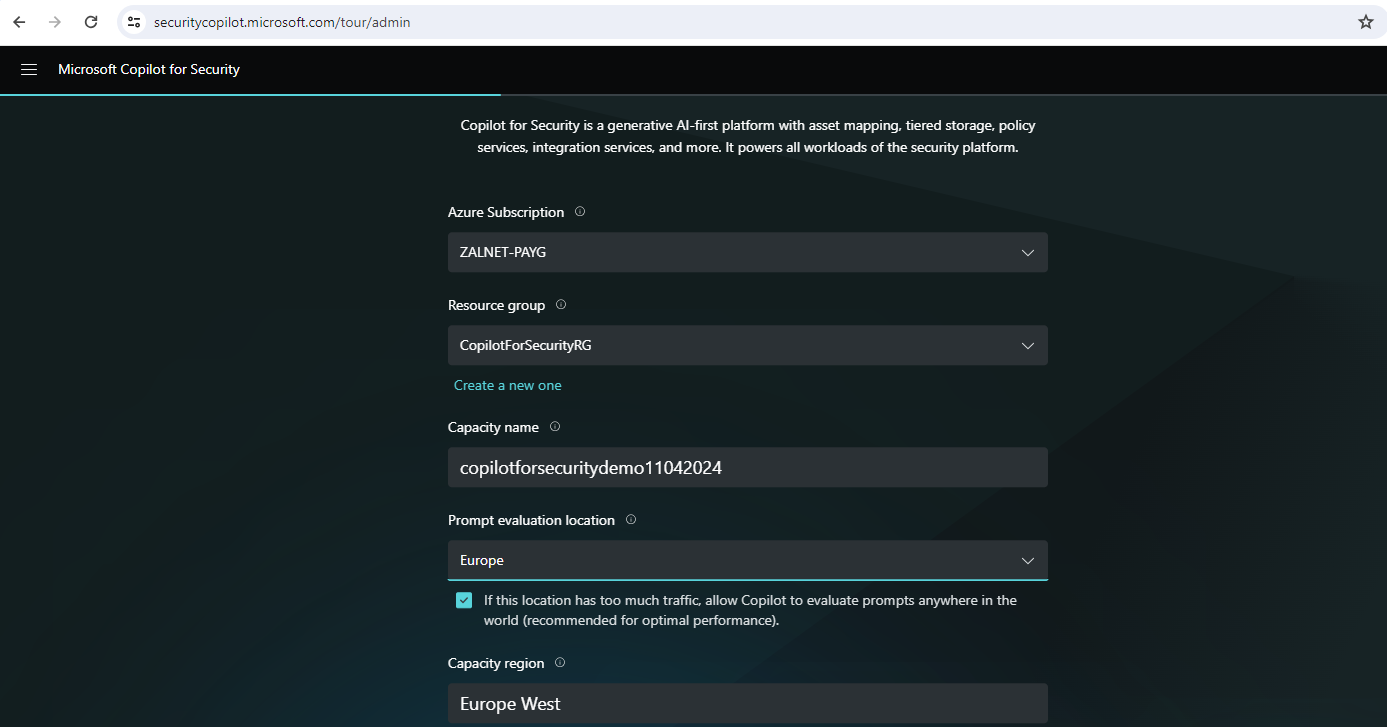

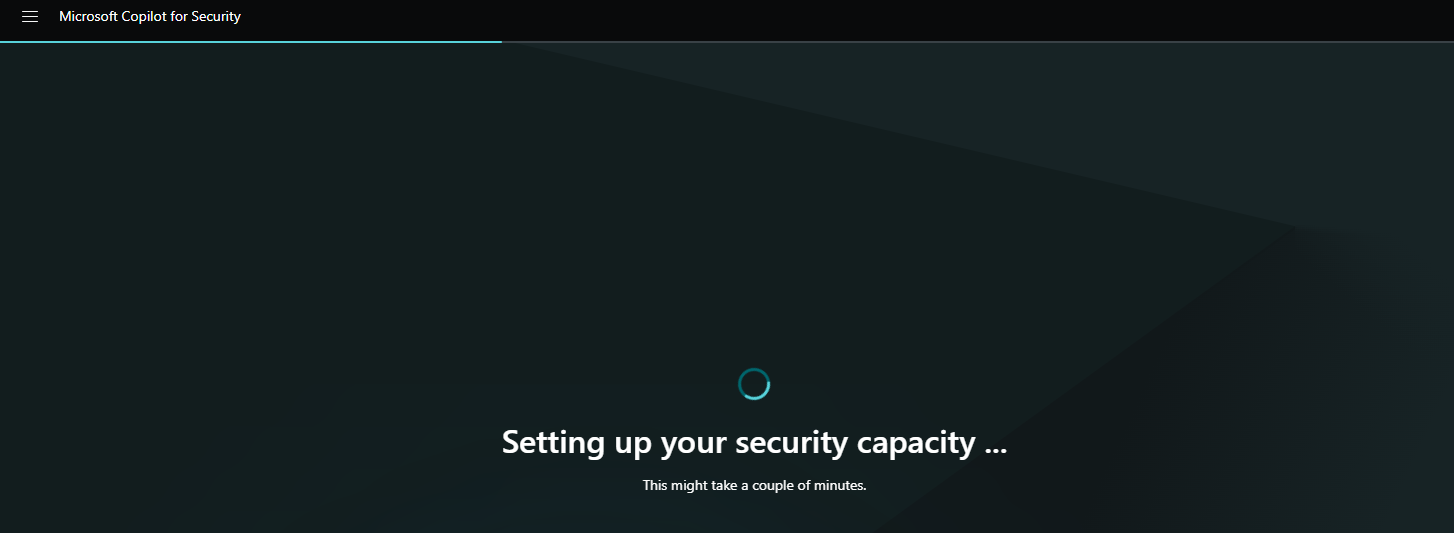
4. After you’ve created the capacity, it will take a few minutes to deploy the Azure resource on the back end.
Set up default environment
Note: You need to have a Global Administrator or Security Administrator role to accomplish this task.
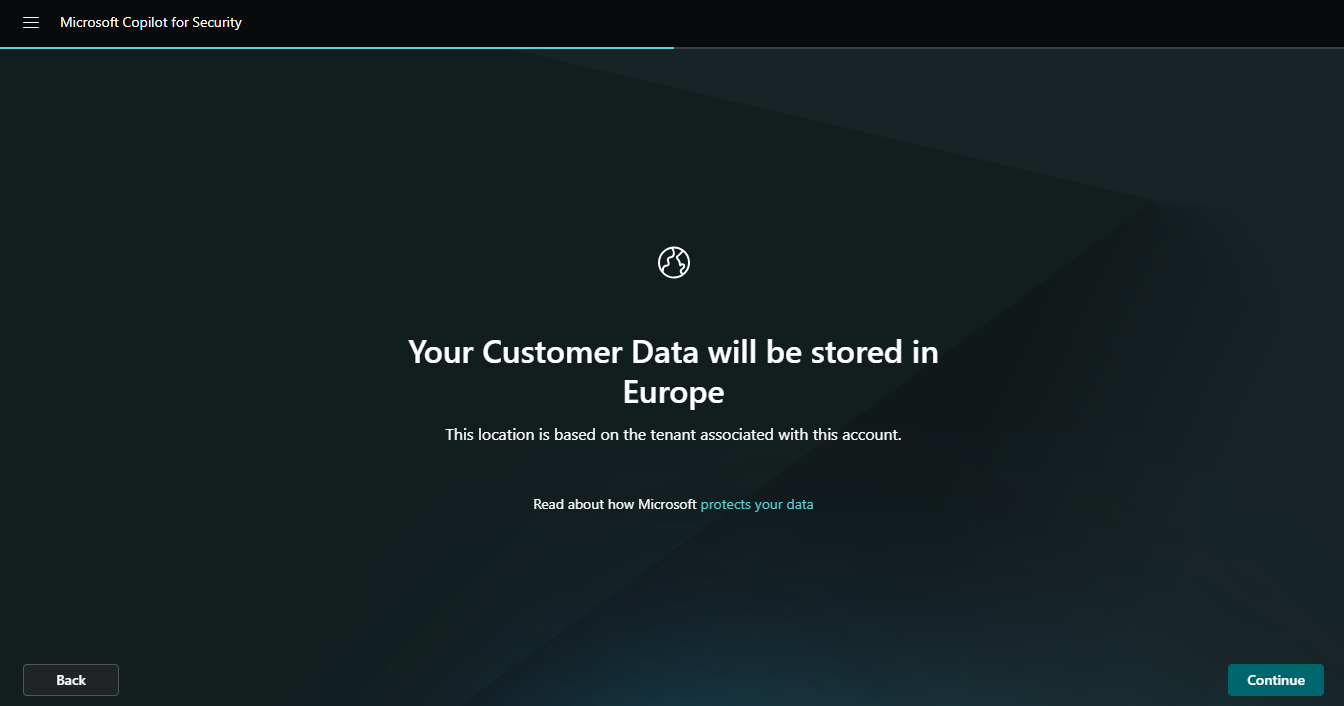
- Wait until the capacity is set. You’re informed where your Customer Data will be stored. Click Continue.
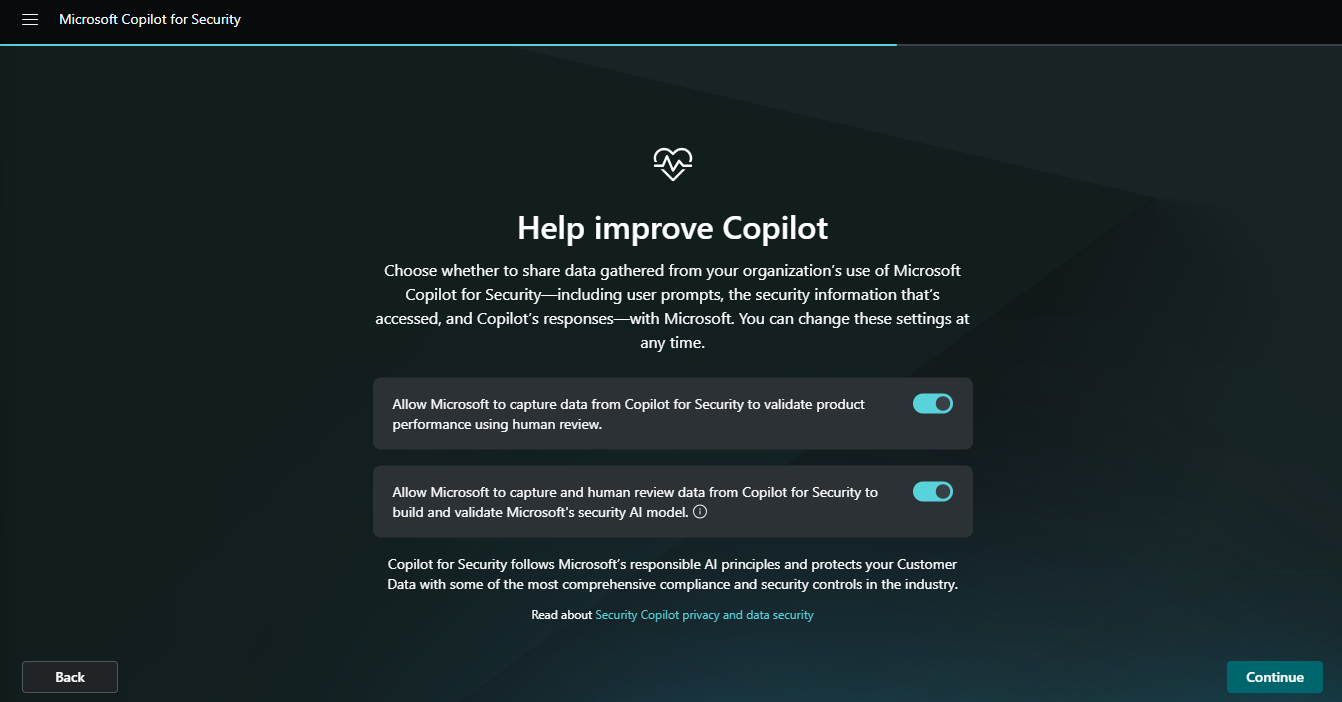
2. Decide if you want to help improving Copilot. Select among the data sharing options. For more information on data sharing, see Privacy and data security. Click Continue.
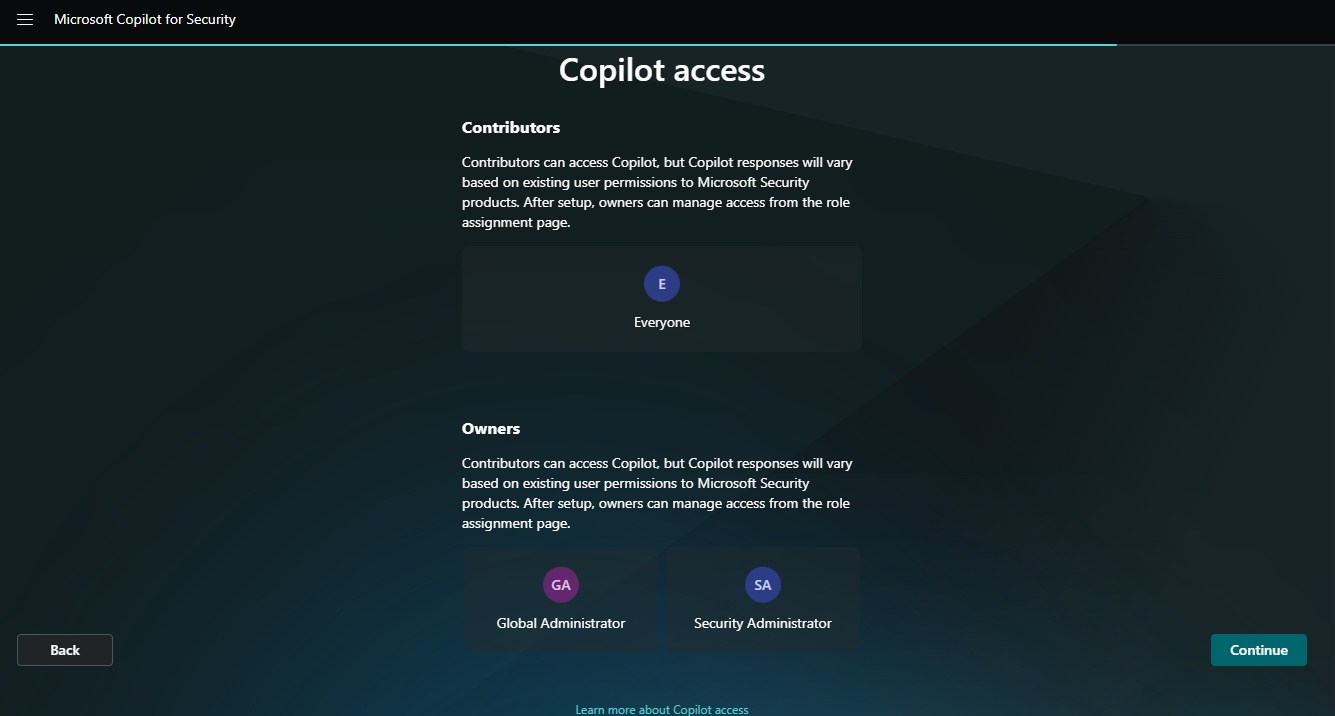
3. You’ll be informed of the default roles that can access Copilot for Security. Click Continue.
4. A confirmation page is displayed. Click Finish.
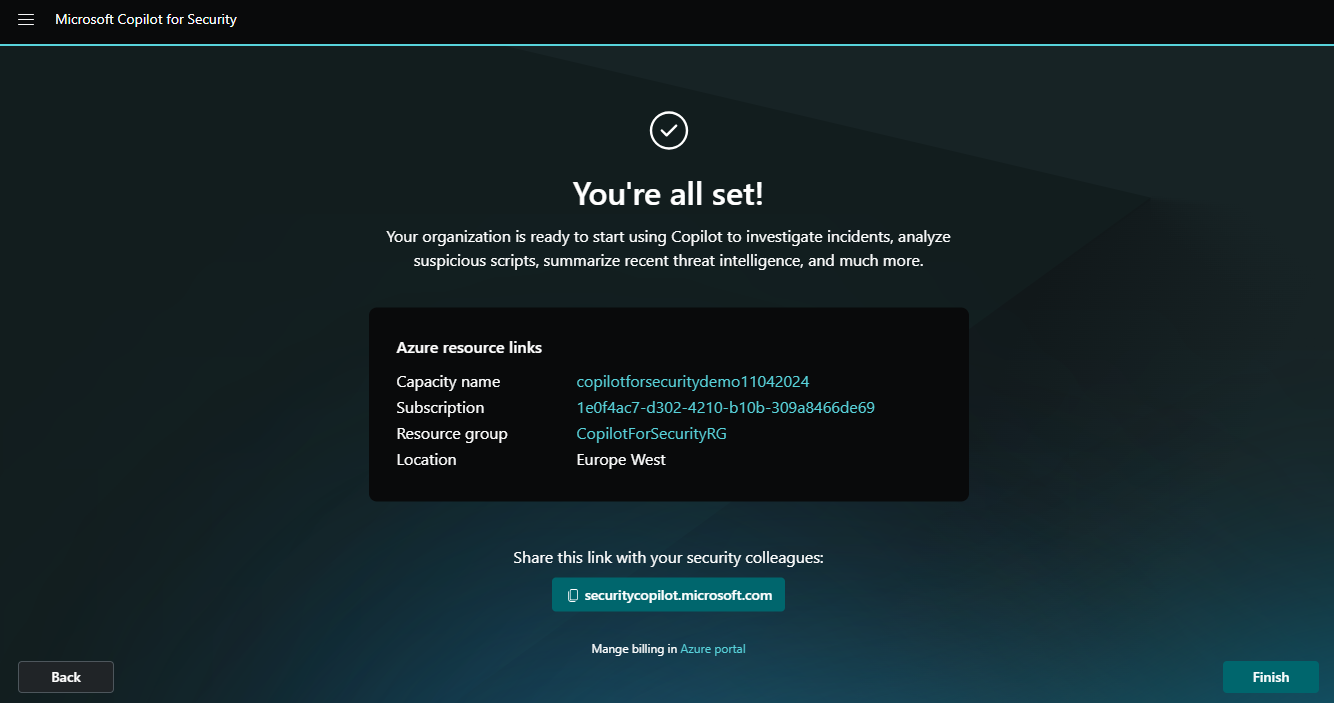
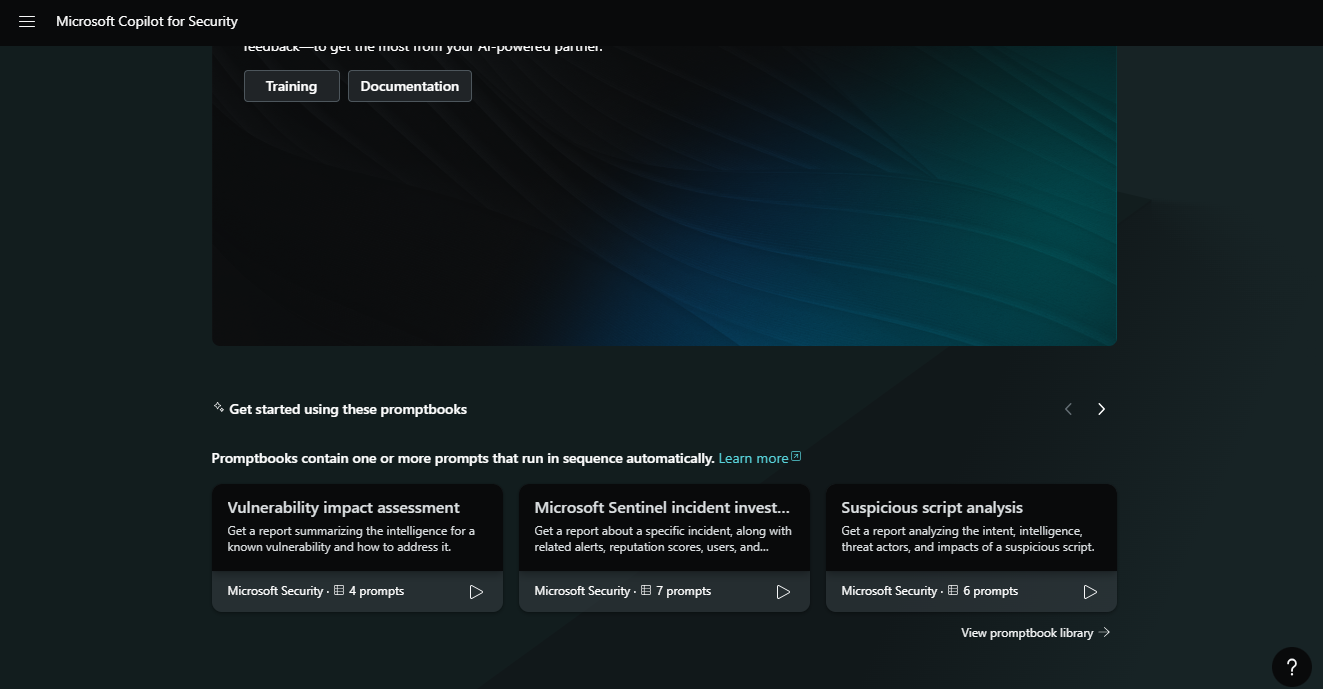
5. Our Microsoft Copilot for Security is ready to use.
Option 2: Provision capacity through Azure
The initial set up in this method starts in the Azure portal. You then need to complete the set up in the Copilot for Security portal.
Note: You need to be an Azure owner or contributor at a minimum at a resource group level to be able to create capacity.
- Sign in to the Azure portal.
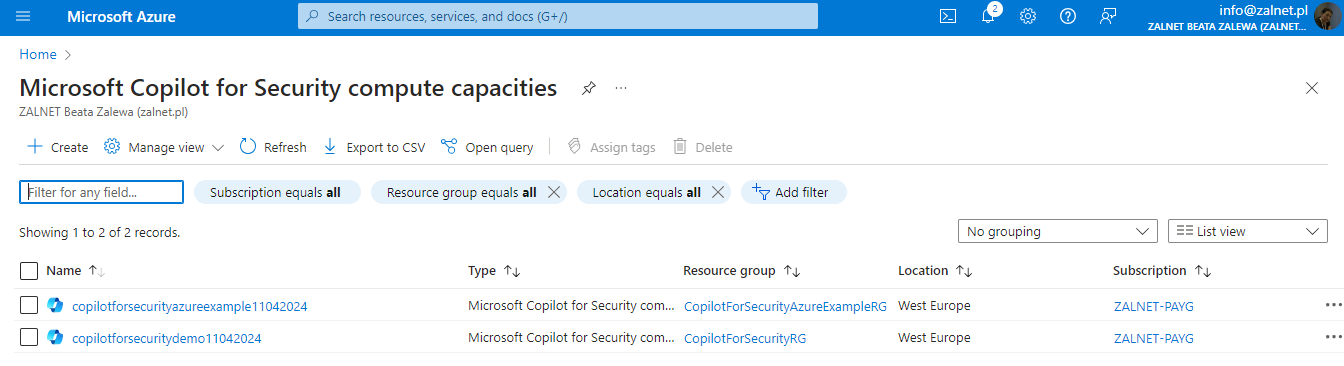
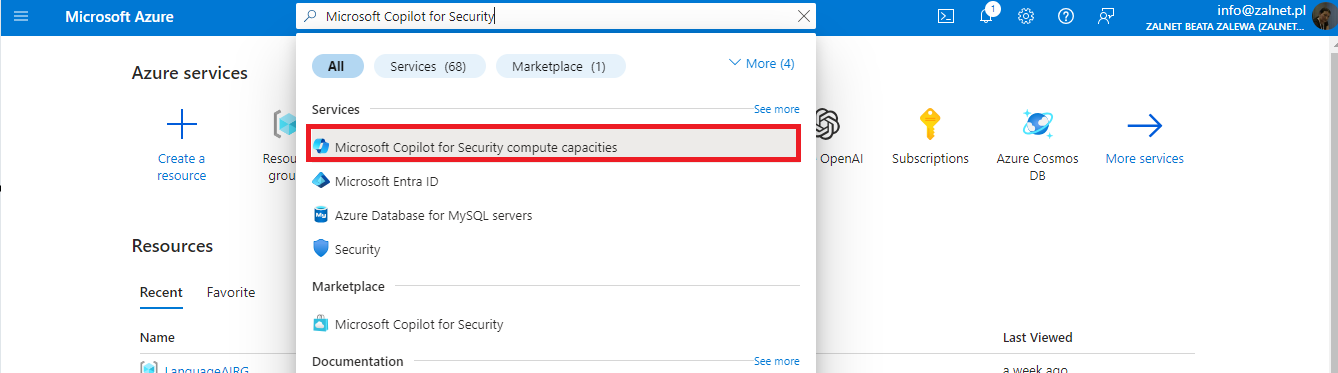
- Search for Copilot for Security in the list of services, then select Microsoft Copilot for Security compute capacities.
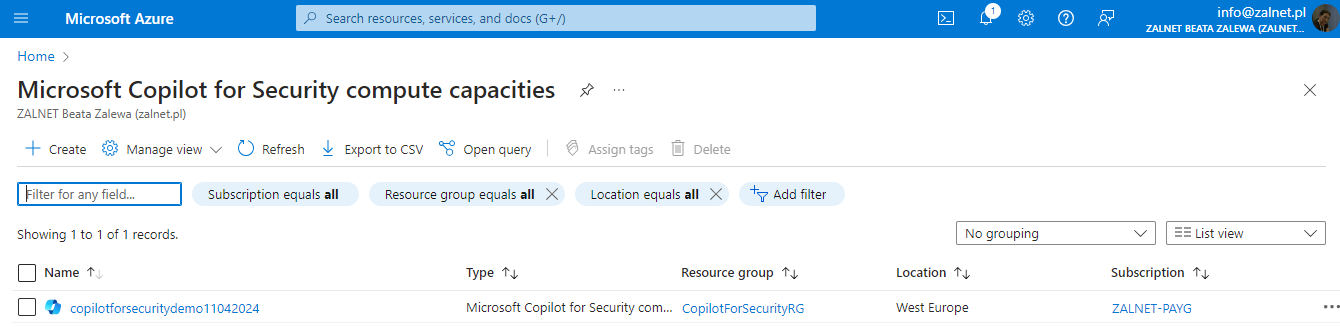
3. Click Create.
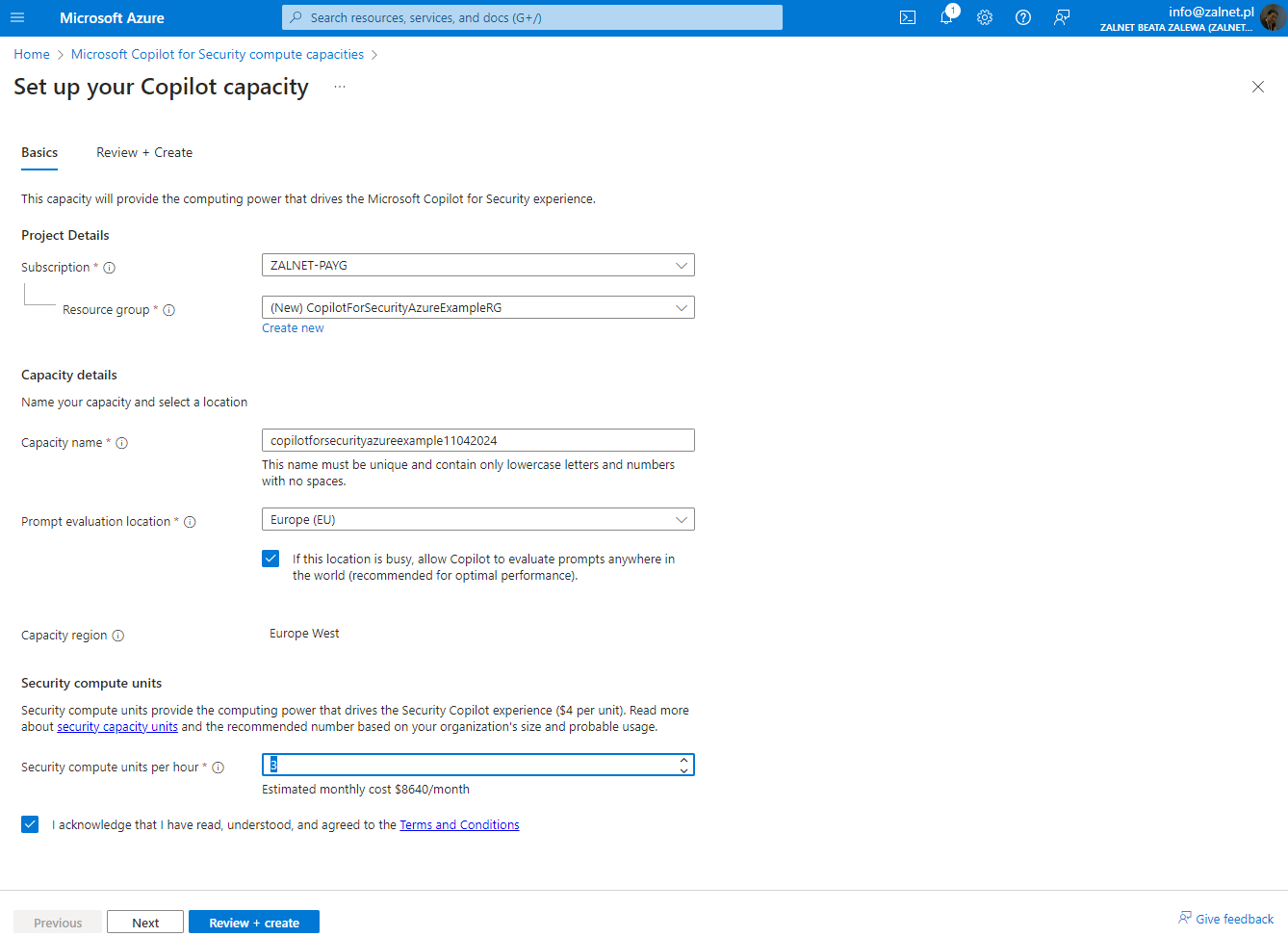
4. Select a subscription and resource group, add a name to the capacity, select the prompt evaluation location and select the number of Security Compute Units (SCUs). Data is always stored in your home tenant geo. Confirm that you acknowledge and have read the terms and conditions, then select Review + create.
Note: The number of SCUs is provisioned on an hourly basis, and the estimated monthly cost is displayed.
If your selected geo location is too busy, you can also evaluate the prompts anywhere in the world. This can be done by selecting the appropriate option in the capacity creation screen.
5. Verify that all the information is correct, then select Create.
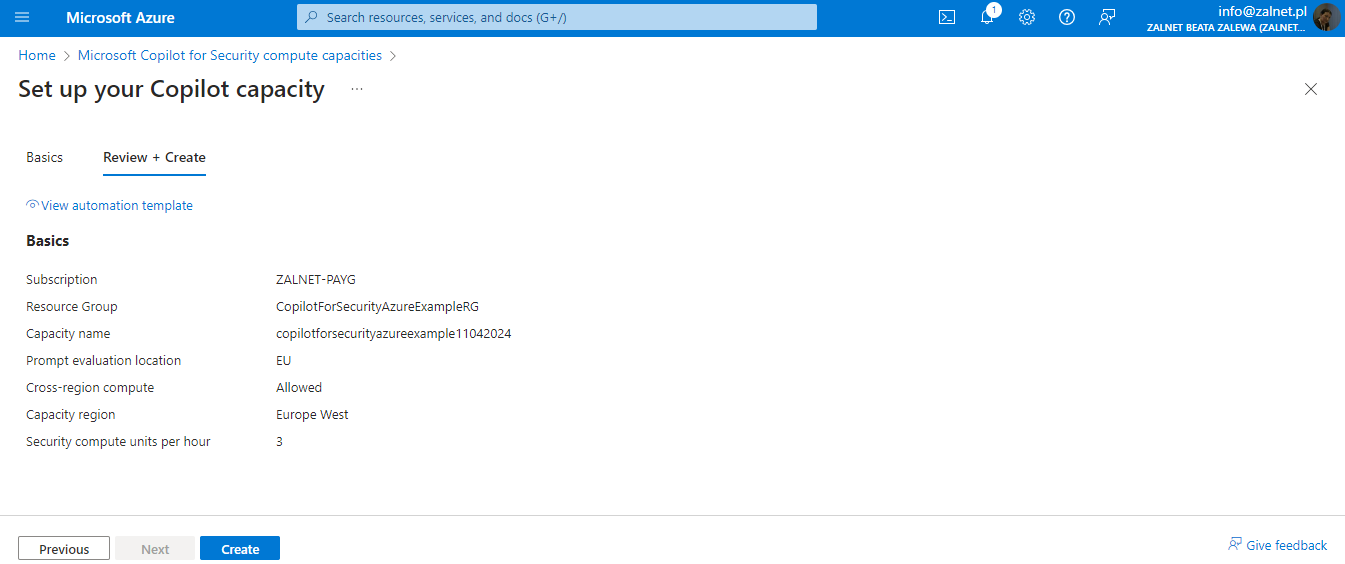
6. A confirmation page is displayed.

7. Click Finish setup in the Copilot for Security portal (required step).
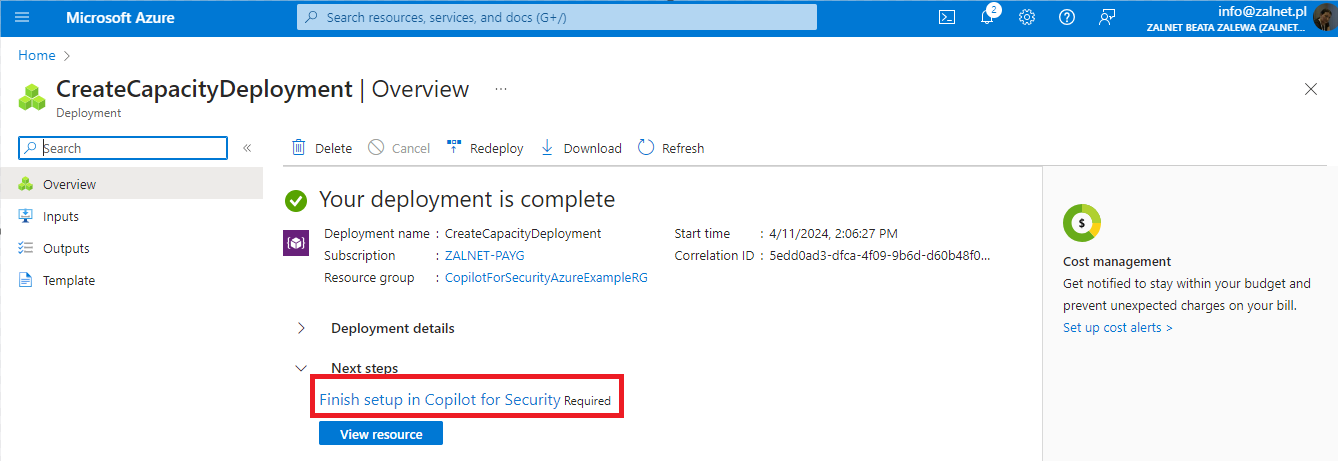
8. The Copilot for Security is ready to use.
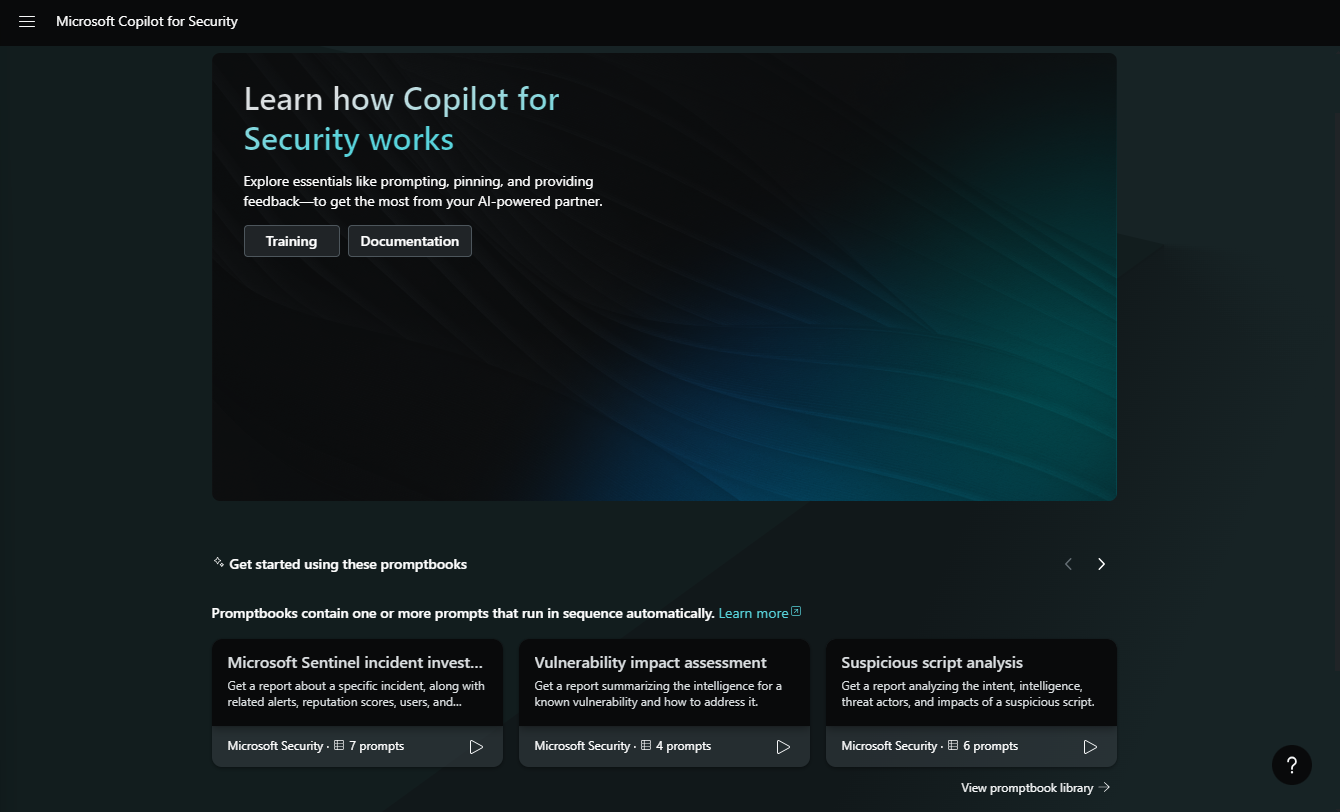
9. Now we have 2 instances of Microsoft Copilot for Security.